
How to Fix IPTV Buffering & Freezing — 2026 Troubleshooting Guide
If your IPTV keeps buffering, freezing, or stuttering, you’re not alone — and it’s not always “just the internet”. In most cases, the root cause is a combination of Wi‑Fi signal, device performance, player settings, and peak-hour load.
This guide gives you a clear, step-by-step checklist to diagnose the problem and fix it fast. If you’re new to setup on your device, start with our tutorial guides or follow the dedicated setup pages for Fire Stick, Android TV / Google TV, Apple TV, Windows, or iPhone & iPad.
Quick Fix Checklist (Start Here)
Do these in order — most buffering issues are solved by steps 1–4:
- Test 3 different channels (one SD, one HD, one sports channel if you have it)
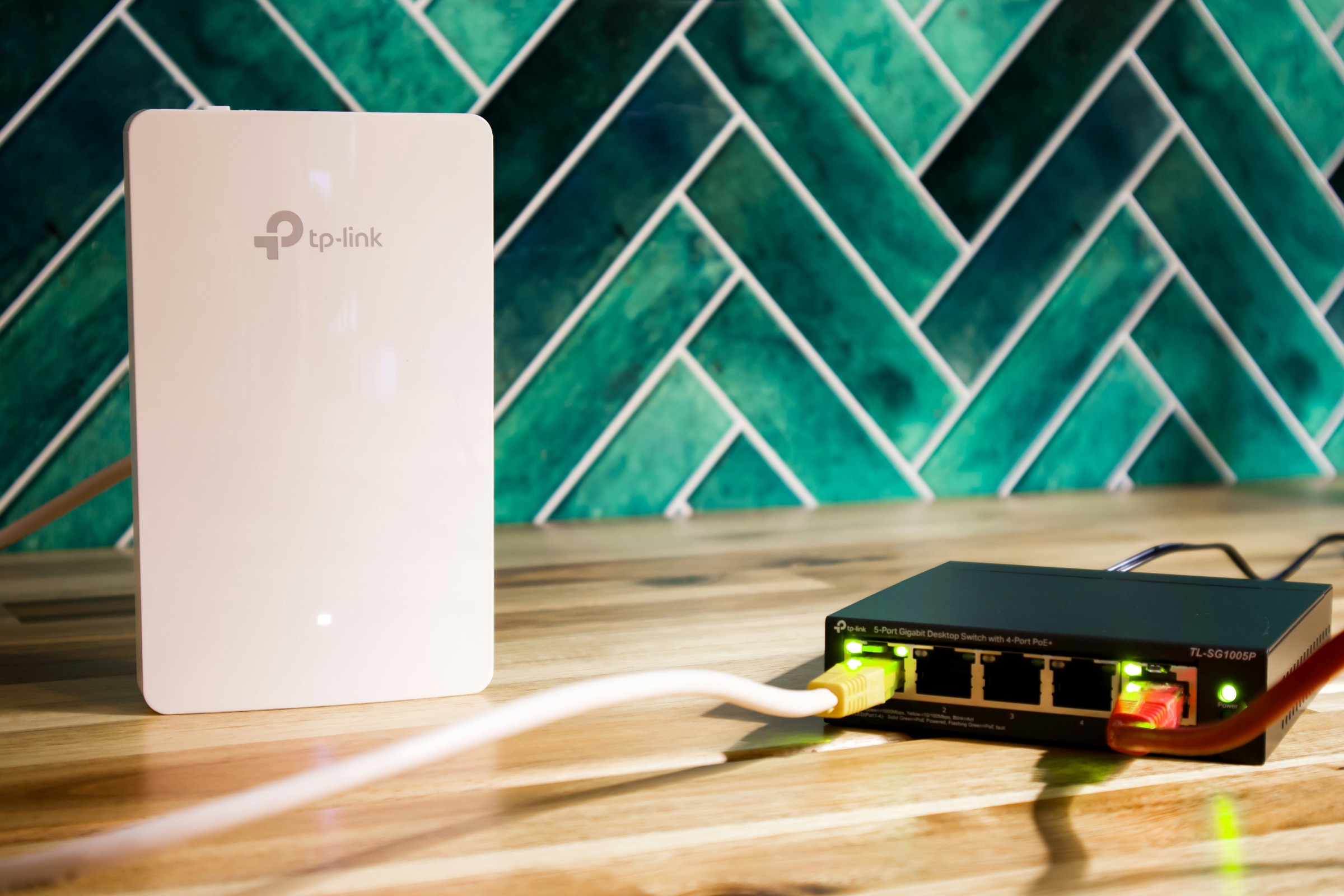
- Switch from Wi‑Fi to Ethernet if possible (or move closer to the router)
- Restart your IPTV device and your router (power off 20 seconds)
- Lower stream quality (try HD instead of 4K) and test again
- Try a different IPTV player app (players handle decoding differently)
Why IPTV Buffers (The Most Common Causes)
In real-world home setups, IPTV buffering usually comes from:
- Weak Wi‑Fi / interference (2.4GHz congestion, distance, walls, busy apartments)
- Not enough headroom (someone else is gaming, downloading, or streaming 4K)
- Device / decoding limits (older TV sticks struggle with high bitrate streams)
- Peak-hour load (evening sports and weekends are the hardest time to stream)
- ISP routing or shaping (some ISPs throttle streaming routes at busy times)
The goal is to identify which category you’re in, then fix the simplest bottleneck first.
Step 1: Check If It’s One Channel or Everything
This single test tells you where to focus:
- Only one channel buffers → it’s usually the stream/source for that channel, not your setup
- All channels buffer → it’s almost always your network, device, or player settings
- 4K buffers but HD is fine → your Wi‑Fi/device isn’t stable enough for high bitrate
- Only buffers at night → peak-hour congestion (home Wi‑Fi or upstream load)
Tip: test the same channel on a second device (phone vs TV). If the phone is smooth but the TV device buffers, you likely have a device/player issue.
Step 2: Fix Your Home Network (Biggest Impact)
Use Ethernet (Best Fix for Live Sports)
If your streaming device supports Ethernet (or a USB‑C hub adapter), use it. Wired streaming removes most packet loss and Wi‑Fi interference.
Use 5GHz Wi‑Fi and Improve Signal
If you must use Wi‑Fi:
- Prefer 5GHz over 2.4GHz
- Move the router closer, or place a mesh node near the TV
- Avoid hiding the router behind the TV, inside cabinets, or near thick walls
Restart Router/Modem the Right Way
Quick restarts sometimes don’t reset a bad connection. Do a proper power cycle:
- Turn off the router/modem (unplug power)
- Wait 20 seconds
- Power it back on and wait until fully connected
Reduce Competing Traffic
During buffering tests, pause:
- Large downloads (games, updates)
- Cloud sync (iCloud/Google Drive/Dropbox)
- Other 4K streams in the home
If your router supports it, enable QoS (Quality of Service) and prioritise the streaming device.
Step 3: Fix Your Device and IPTV App
Update the IPTV Player and OS
Outdated apps and firmware cause crashes, stutters, and codec problems. Update:
- IPTV app (TiviMate / IPTV Smarters / etc.)
- Device OS (tvOS / Android TV / Fire OS / Windows)
Enable Hardware Decoding (If Available)
Many IPTV apps include a decoding setting. If you see stutter or frame drops, turning on hardware decoding often helps.
Clear Cache and Restart the Device
If buffering “suddenly started”, cache and memory pressure are common causes:
- Clear app cache (where supported)
- Force close the IPTV app
- Restart the device
Try a Different Player App
This is an underrated fix. Some apps handle certain streams better than others. If you’re on Android TV, our Android TV / Google TV setup guide includes app recommendations and performance settings.
Step 4: Refresh Playlist and EPG Correctly
If you’re using Xtream Codes (recommended), the easiest fix is often to re-check your login details and refresh:
- Confirm the server URL, username, and password (no extra spaces)
- Refresh categories inside the app
- If needed, remove the profile and add it again
If you’re using an M3U playlist, remember:
- Some M3U links expire or rotate
- Many apps require a manual refresh after you update the playlist
For EPG (programme guide):
- EPG may need 15–30 minutes to populate after first setup
- Make sure you used the XMLTV / EPG URL (not the M3U link)
Step 5: When a VPN Helps (And When It Doesn’t)
A VPN can help if your ISP is throttling certain streaming routes or if your connection path is unstable. It usually helps when:
- Buffering happens mostly during peak hours
- One internet provider/network buffers, but another (mobile hotspot) is fine
VPN tips:
- Choose a nearby server location (lower latency)
- Avoid free VPNs (they’re often slower and overloaded)
- If VPN makes it worse, turn it off — VPN adds overhead
Recommended Internet Speeds (Realistic Targets)
For a smooth IPTV experience:
- SD: 10 Mbps
- HD (1080p): 15–25 Mbps
- 4K: 35–60 Mbps (more headroom is better)
More important than headline speed is stability. A “200 Mbps” connection with unstable Wi‑Fi can buffer more than a stable 30–50 Mbps line.
What to Do If Buffering Keeps Happening
If you’ve tried the steps above and the issue persists:
- Test with Ethernet (even temporarily) to confirm Wi‑Fi isn’t the problem
- Test a second device/player app to isolate device performance issues
- Test outside peak hours to compare results
- If buffering is only on specific channels, make a list of the channel names and times it happens
If you’re setting up on a new device, follow a dedicated guide to reduce configuration mistakes:
- Fire Stick IPTV setup guide
- Android TV / Google TV IPTV setup guide
- Apple TV IPTV setup guide
- Samsung & LG Smart TV IPTV setup guide
Ready to Start Streaming?
If you want to test a stable IPTV service across multiple devices, start with a free trial. You can request a free 24-hour test account here and check performance on the channels and devices you actually use.